How to Add a Waitlist to Squarespace (Complete 2026 Guide)
TL;DR: Squarespace doesn't have a native waitlist feature with referral mechanics, but you can add one in under 10 minutes by embedding a lightweight waitlist widget (like LaunchList) via Squarespace's Code Block. Works with Squarespace 7.1, Fluid Engine, Classic Editor, and every Squarespace template. Here's how.
Squarespace is one of the most popular website builders for product launches — especially for creators, D2C brands, and consumer apps that want a beautiful design without hiring a developer. But if you've tried to add a real pre-launch waitlist to a Squarespace site, you've probably hit these walls:
- Squarespace's built-in form doesn't have a referral program
- The built-in form doesn't track positions
- Squarespace Newsletter doesn't have viral mechanics
- Squarespace's marketplace plugins for waitlists are sparse
The best solution in 2026: embed a dedicated waitlist widget on your Squarespace page. You get referral leaderboards, spam protection, integrations, and all the mechanics — while keeping Squarespace as your design tool.
This guide walks through the exact steps for every Squarespace version.
What you get
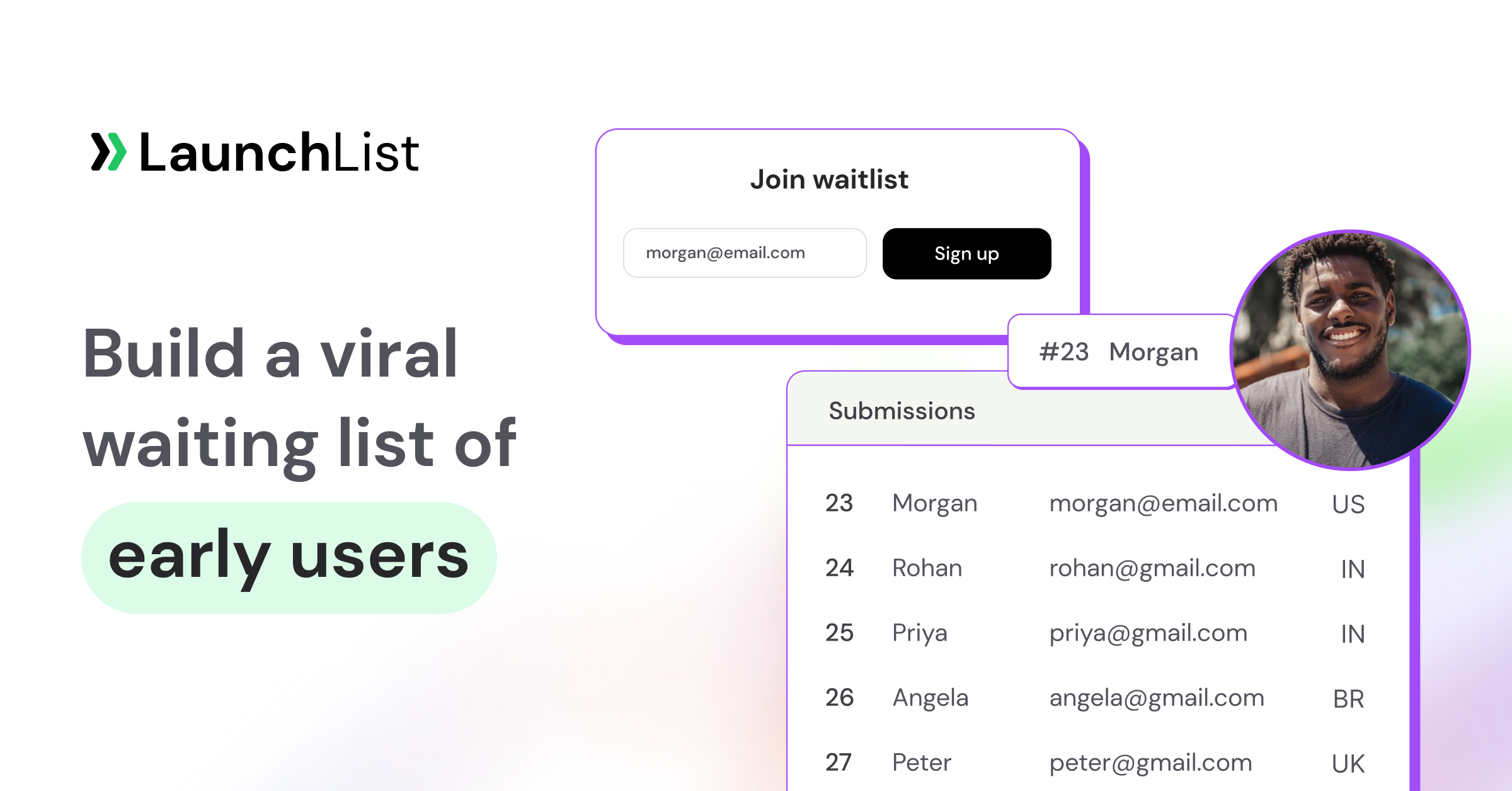
When you embed LaunchList on Squarespace, your waitlist includes:
- Referral leaderboard (Dropbox-style viral growth)
- Position tracking (#142 in line)
- Fraud detection, email validation, ReCaptcha and per-IP rate limiting
- Custom confirmation emails
- Zapier, Slack, webhook integrations
- Mobile-responsive (matches your Squarespace theme)
Step-by-step setup
Step 1: Create your waitlist
- Sign up at LaunchList (free — 100 submissions included)
- Create a new waitlist named after your product
- Configure your referral rewards (e.g. "every referral moves you up 5 spots")
- Go to Integrations → Squarespace and copy the embed code
Step 2: Add the script to Squarespace
- In Squarespace, go to Settings → Advanced → Code Injection
- Paste this into the Header section:
<script async src="https://getlaunchlist.com/js/widget.js"></script>
- Click Save
This loads the widget code on every page of your site. The widget loads asynchronously, so there should be minimal performance impact — verify with Squarespace's built-in performance reports on your specific template.
Step 3a: Embed the form (Squarespace 7.1 / Fluid Engine)
- Edit the page where you want the waitlist
- Click the + button to add a block
- Choose Code (under "More")
- Set the language to HTML
- Paste:
<div class="launchlist-widget"
     data-key-id="YOUR_KEY_HERE"
     data-height="200px">
</div>
- Click Apply and Save
The form appears instantly. You can drag and resize it within Fluid Engine.
Step 3b: Embed the form (Squarespace 7.1 Sections Editor)
- Edit the page
- Click + Add Block within a section
- Choose Code
- Paste the
<div>embed code - Save
Step 3c: Embed the form (Squarespace 7.0 Classic)
- Edit the page
- Add a new Code block
- Set to HTML
- Paste the
<div>embed code - Save
Step 4: Customize to match your Squarespace theme
In LaunchList, go to Waitlist Settings → Appearance:
- Button color: match your Squarespace accent color
- Font: set to
inheritto use your Squarespace theme font - Border radius: match your Squarespace button radius
- Background: transparent (so it blends with your Squarespace section background)
Save — changes appear instantly on your Squarespace site.
Step 5: Test the flow
- Open your Squarespace page in a private/incognito window
- Enter a test email
- Verify confirmation email arrives
- Click the referral link
- Check that position updates correctly
Building a dedicated Squarespace waitlist landing page
For maximum conversions, build a single-purpose waitlist landing page (not just a form on your homepage). Here's a proven Squarespace structure:
Section 1: Hero
- Headline (specific outcome, <10 words)
- Subhead (one sentence explaining who it's for)
- Waitlist embed (LaunchList Code block)
Section 2: Social proof
- Press logos or testimonial quotes
- Signup counter (only if you have real data — otherwise omit)
Section 3: How it works
- 3 icons + short explanations
Section 4: Referral incentive
- "Move up the queue — invite friends, earn rewards"
- Second waitlist embed (captures scrollers)
Section 5: FAQ
- Use Squarespace's Accordion block (7.1) for 5–6 common questions
Section 6: Final CTA
- One more chance to sign up
- Third waitlist embed
See 15 Waitlist Landing Page Examples That Convert for copy-paste inspiration.
Styling tips for Squarespace
Make the form full-width inside a Code block
Squarespace Code blocks sometimes constrain width. Add this inline CSS inside the Code block:
<style>
  .launchlist-widget { width: 100%; max-width: 520px; margin: 0 auto; }
  .launchlist-widget form { display: flex; gap: 8px; }
  .launchlist-widget input[type="email"] { flex: 1; }
</style>
<div class="launchlist-widget" data-key-id="YOUR_KEY"></div>
Match Squarespace typography
Tell the widget to inherit fonts:
<style>
  .launchlist-widget, .launchlist-widget input, .launchlist-widget button {
    font-family: inherit;
    font-size: inherit;
  }
</style>
Add hover/focus effects that match your Squarespace theme
<style>
  .launchlist-widget button:hover {
    opacity: 0.9;
    transform: translateY(-1px);
    transition: all 0.2s;
  }
</style>
Squarespace Commerce users: pre-launch product waitlist
If you're using Squarespace Commerce to launch a new product (D2C brand, new drop, exclusive collection), add the waitlist to your product page before the product goes live:
- Create a placeholder product with a "Coming Soon" title
- Hide the Add-to-Cart button
- Add the LaunchList Code block where the cart button would be
- At launch, swap it for a real product
This works especially well for limited-edition drops — you capture interest and can segment emails by collection.
Analytics integration
Squarespace users often want waitlist signups tracked in Google Analytics or Squarespace Insights. LaunchList fires a launchlist_signup event on every signup:
<script>
  window.addEventListener('launchlist:signup', (event) => {
    // Google Analytics 4
    gtag('event', 'signup', {
      event_category: 'waitlist',
      event_label: 'landing_page',
    });

    // Facebook Pixel
    fbq('track', 'Lead');
  });
</script>
Add this in Settings → Advanced → Code Injection → Footer.
Troubleshooting
The form doesn't appear
- Clear Squarespace's CDN cache (Settings → Advanced → Caching)
- Verify the
<script>tag is in the Header (not Footer) - Check that you saved the Code block (Squarespace sometimes needs a second save)
The form looks misaligned
- Check if your Squarespace section has padding/margin overriding the widget
- Wrap the embed in
<div style="padding: 20px 0;">to add breathing room
Squarespace says "External scripts disabled"
- This only happens on Squarespace trials — upgrade to any paid plan to enable
Emails go to spam
- Set up SPF/DKIM on your custom sending domain in LaunchList
- Avoid spam-trigger words in your confirmation email subject
FAQ
Does Squarespace have a built-in waitlist?
Squarespace has a Newsletter block that captures emails, but it has no referral program, position tracking, or viral mechanics. For a real pre-launch waitlist, embed a dedicated tool like LaunchList using a Code block.
What Squarespace plan do I need to add a waitlist?
Any paid Squarespace plan (Personal, Business, Commerce) supports Code blocks and Code Injection. The free trial disables external scripts.
Will a waitlist slow down my Squarespace site?
The LaunchList widget loads asynchronously so it shouldn't block your page rendering. In practice impact on Core Web Vitals is minimal — verify on your specific Squarespace template using PageSpeed Insights.
Can I use this on a Squarespace Commerce site?
Yes — ideal for pre-orders, limited drops, or new collection launches. You can embed the waitlist on product pages, collection pages, or dedicated landing pages.
Can I style the waitlist to match my Squarespace theme?
Yes, through the LaunchList Appearance settings (button color, font, radius) or inline CSS within the Code block for finer control.
How do I export my Squarespace waitlist signups?
In LaunchList, go to your waitlist → Export → CSV. You can also sync signups automatically to Mailchimp, ConvertKit, HubSpot, or any CRM via Zapier.
Can I send emails from my own domain (not getlaunchlist.com)?
Yes. Set up a custom email sending domain in LaunchList Settings → Email Domain. Requires adding SPF/DKIM records — guide included in the dashboard.
Does this work on mobile?
Yes. The widget is fully mobile-responsive and inherits your Squarespace theme's mobile breakpoints automatically.
Launch your Squarespace waitlist today
You can have a viral waitlist with referral mechanics live on your Squarespace site in under 10 minutes. Free plan includes 100 signups, referral leaderboard, and spam protection.
Related reading
- Add a waitlist form to any website — the no-code embed hub.
- Add a waitlist to Webflow — cousin setup guide for Webflow sites.
- Add a waitlist to WordPress — cousin setup guide for WordPress.
- 15 waitlist landing page examples that convert above 40%, with templates to copy.
- Best free waitlist software compared (2026)
- Squarespace integration docs — technical reference, all widget options.
- All 13+ platform integration docs — Framer, Carrd, Wix, Bubble, React, and more.