Carrd Waitlist Integration
Add a viral pre-launch waitlist to your Carrd site in under 3 minutes via Carrd's native Embed element. Requires a Carrd Pro plan for Embed access.
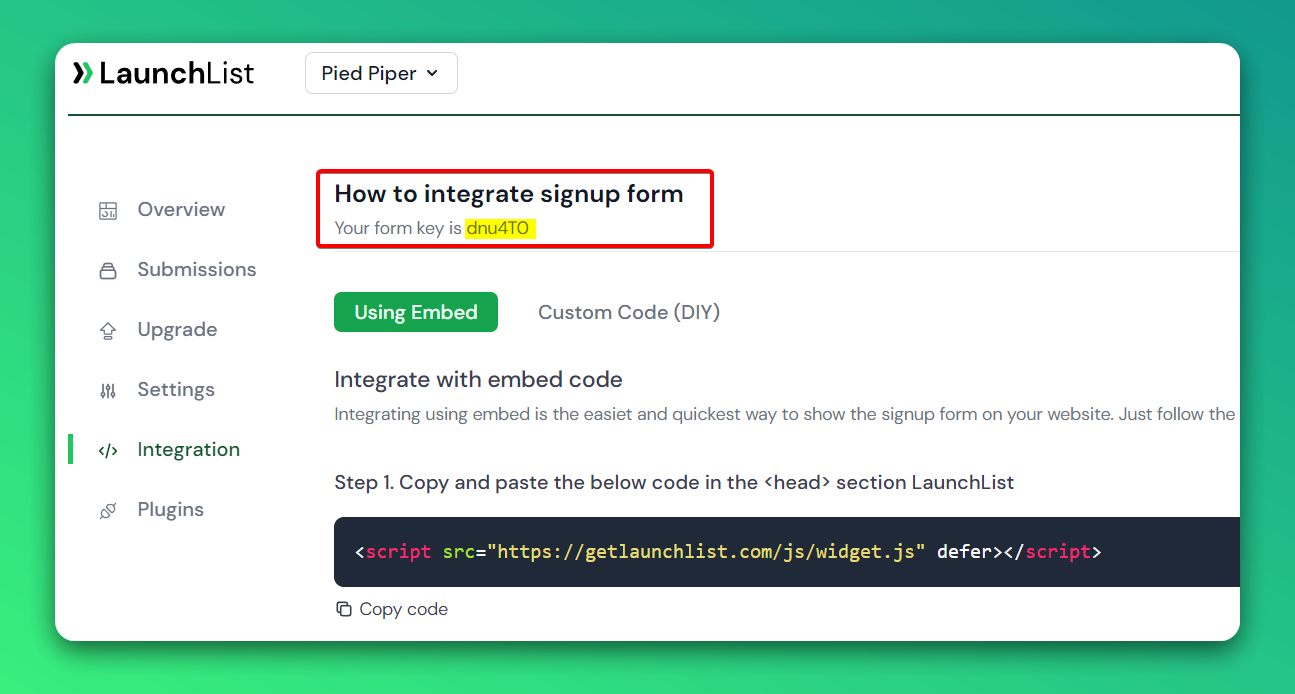
Step 0 - Get form key
To integrate the embed widget on the Carrd website, first, you need a LaunchList form key which you can get from the integration page.
Embed Form
Step 1 - Add a widget script into <head> section\
- Go to your Site Editor
- Click Plus icon to add an element > then select Embed element
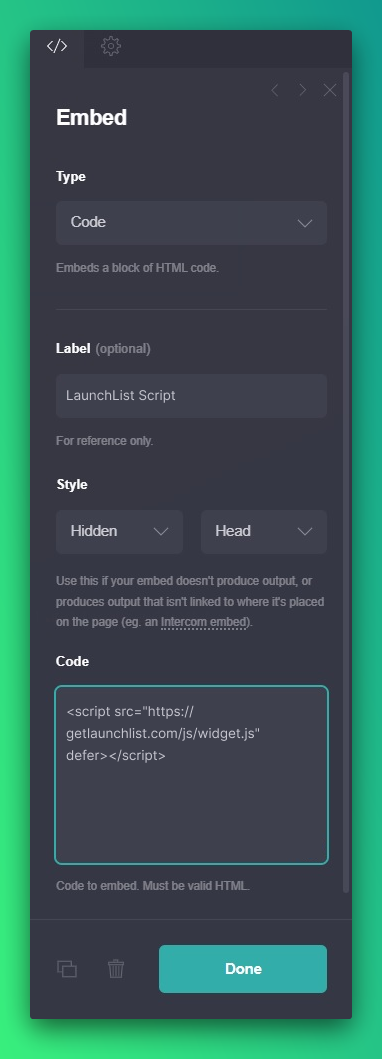
- On Embed settings, select type Code and Style - Hidden / Head
- Paste the below script into the Code text area and click Done to save
<script src="https://getlaunchlist.com/js/widget.js" defer></script>
Step 2 - Add the form code into Carrd embed block
- Go to your Site Editor
- Click Plus icon to add an element > then select Embed element
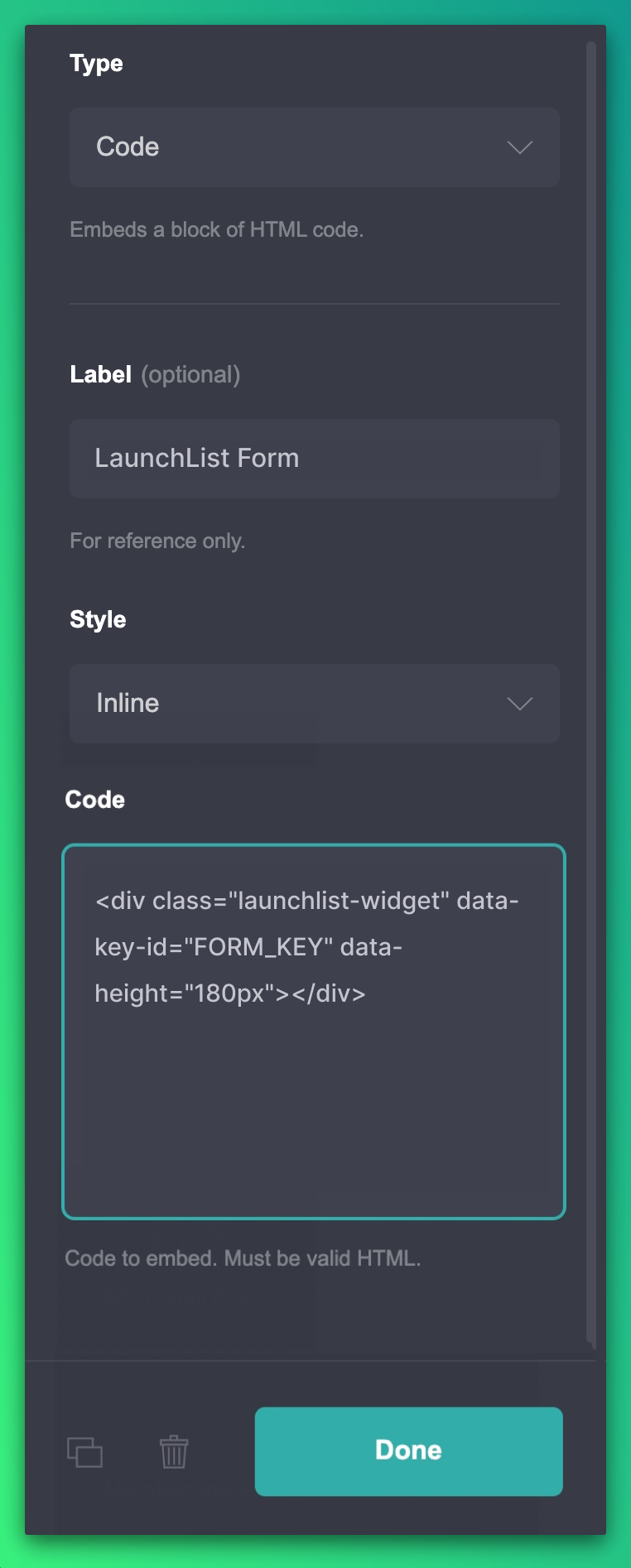
- On Embed settings, select type Code and Style - Inline
- Paste the below code and click Done to save
- Make sure you have replaced the FORM_KEY with your key from Step 0
<div class="launchlist-widget" data-key-id="FORM_KEY" data-height="180px"></div>
- Once updated, you'll see the waitlist widget on your Carrd site.
Custom Form
Follow the below steps to add a custom waitlist form on your Carrd website.
Step 1 - Add a widget script into <head> section
- Go to your Site Editor
- Click Plus icon to add an element > then select Embed element
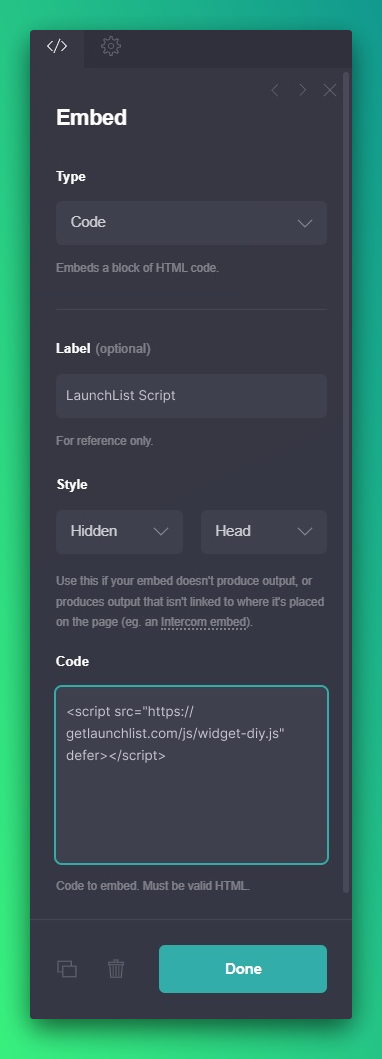
- On Embed settings, select type Code and Style - Hidden / Head
- Paste the below script into the Code text area and click Done to save
<script src="https://getlaunchlist.com/js/widget-diy.js" defer></script>
Step 2 - Create a form in Carrd designer
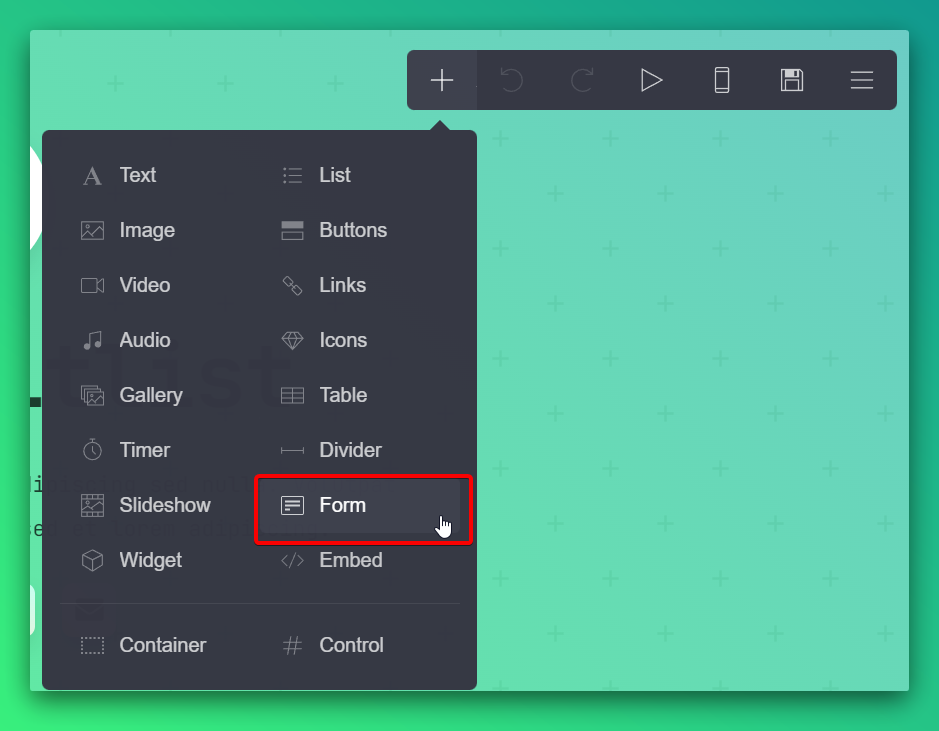
On a website editor page where you want to display the form, click on the plus and then Form
Step 3 - Set up form
- Select your newly created form from the editor
- On the form settings sidebar, select Type to Custom and Send to URL
- Enter the below URL at URL input. Make sure, you replace the FORM_KEY with your form key from Step 0
https://getlaunchlist.com/s/FORM_KEY
- Select Method to POST
- Click on the form Fields settings icon
- Select type to Email and label it anything you want
- Make sure your form has a class name "launchlist-form"
- Save the form by clicking on the Done button
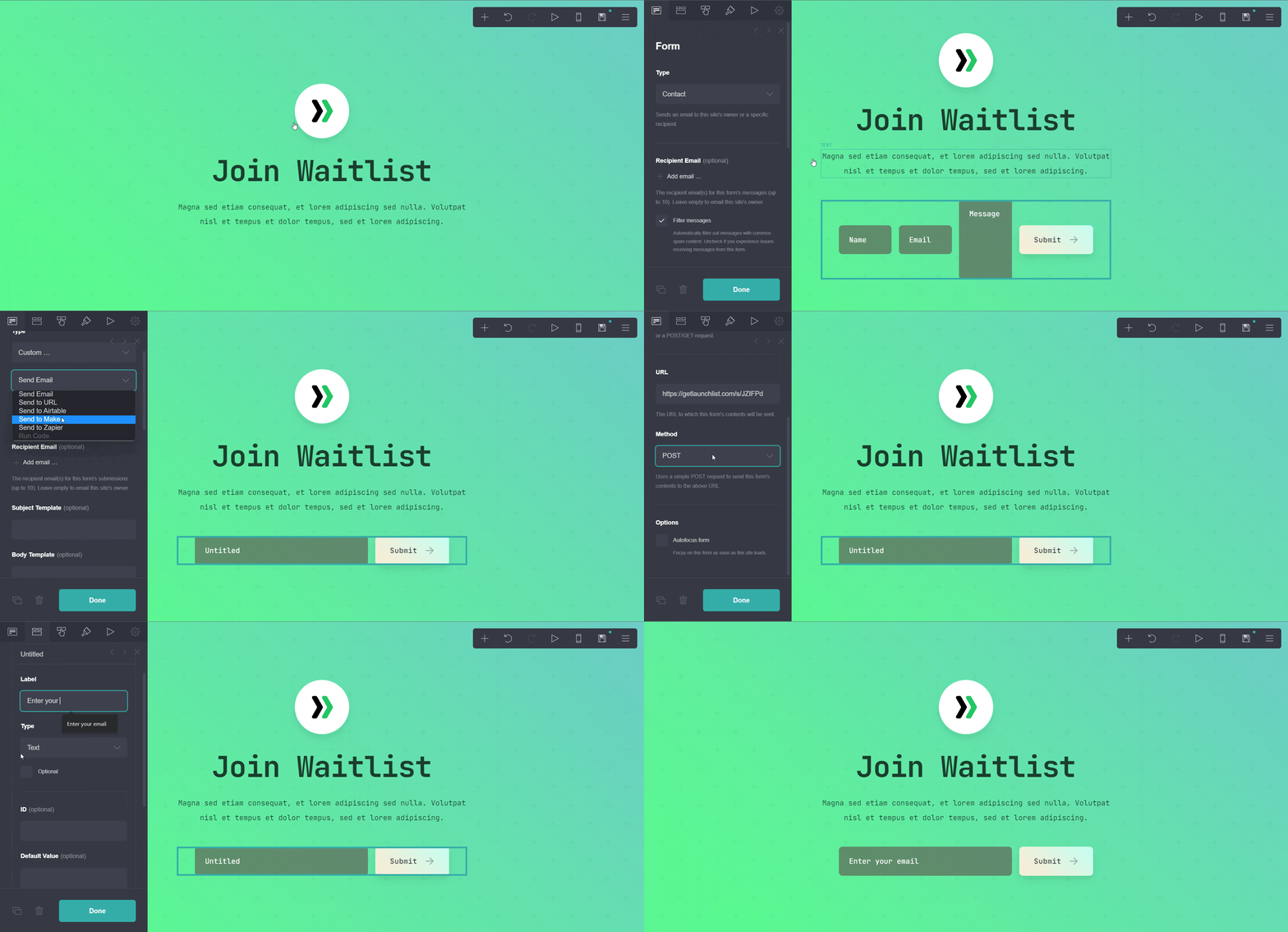
Customize the form however your want. Once published, you'll see the waitlist form on your Carrd website.
Why use LaunchList with Carrd?
Carrd is the fastest way for indie hackers to ship a one-page site. It has a built-in form, but no referral system, no leaderboard, and no spam protection. LaunchList adds all three via Carrd's native Embed element — no external tools, no monthly subscription.
What you get:
- Viral referral program — every signup gets a unique referral link that moves them up the waitlist
- Fraud detection — disposable email blocking, MX validation, and behavioral scoring on every submission
- Two integration modes — use the pre-built embed widget or wire up Carrd's own form via Custom Form mode
- CSV export — download your full list any time
- Free plan — up to 100 submissions, no credit card required